Install for Version 02.00.00
Use this guide if the software version is exactly 02.00.00. You do not need an adbauth.key file.
Prepare
What you need
- One web browser: Chrome, Edge, or Opera. Safari and Firefox do not work.
- One device: a Windows PC, a Mac, or an Android phone.
- One USB cable.
- For a phone only: one OTG cable. Use a USB-C OTG cable for a USB-C phone. Use a Micro USB OTG cable for a Micro USB phone.
Turn on ADB in the car
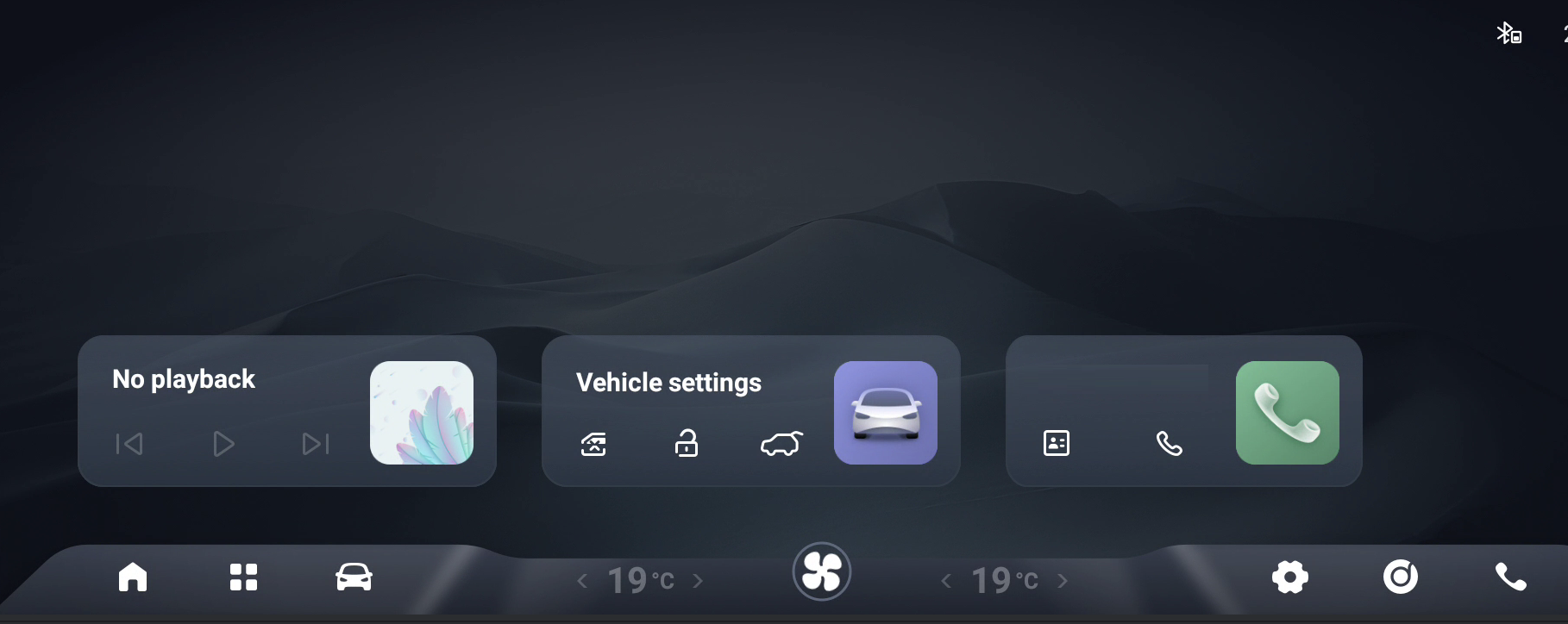
NOTE: In the pictures, the glowing gold dot shows where to touch. The yellow dot is an extra mark.
- Touch the blinking dot on the car screen. The car settings open.
- Find the blue dot in System. Touch it 10 times quickly.
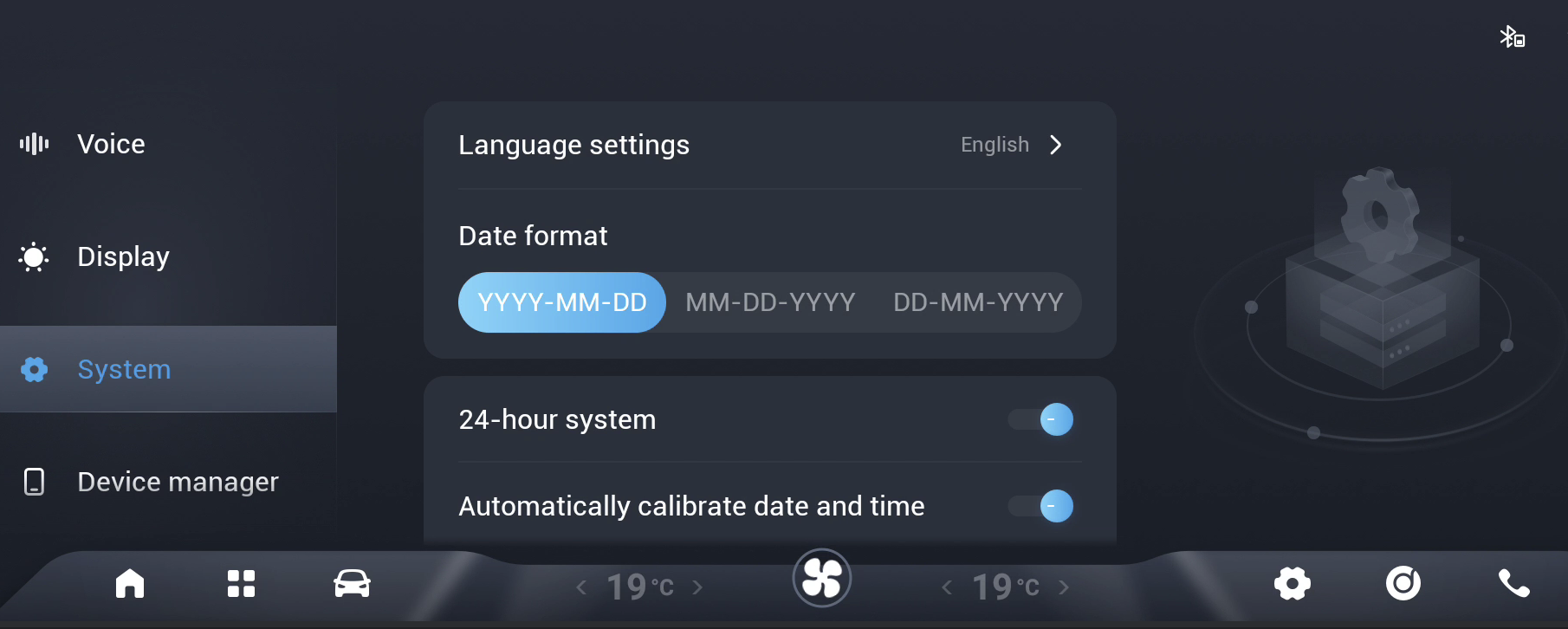
- Touch
USB2.0 AUTH/USB2.0认证.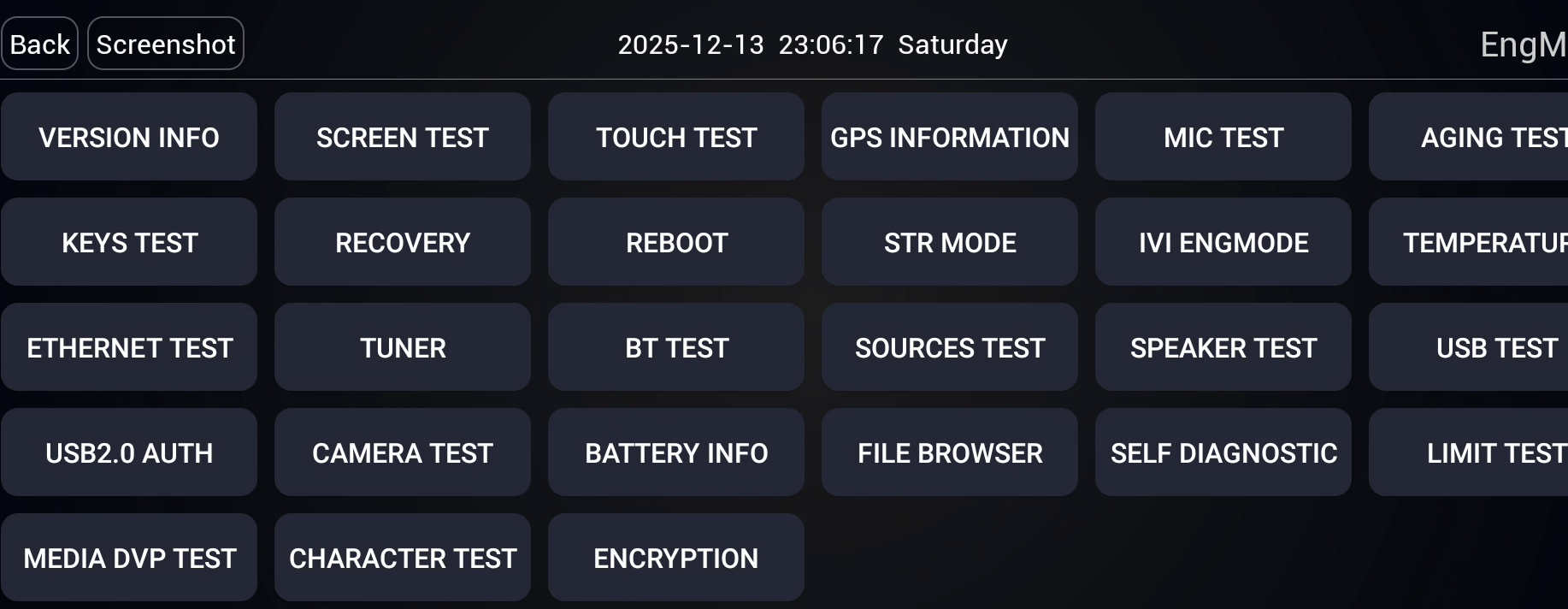
- A window opens. Touch the
DEVICE EYE PATTERN/Device眼图button.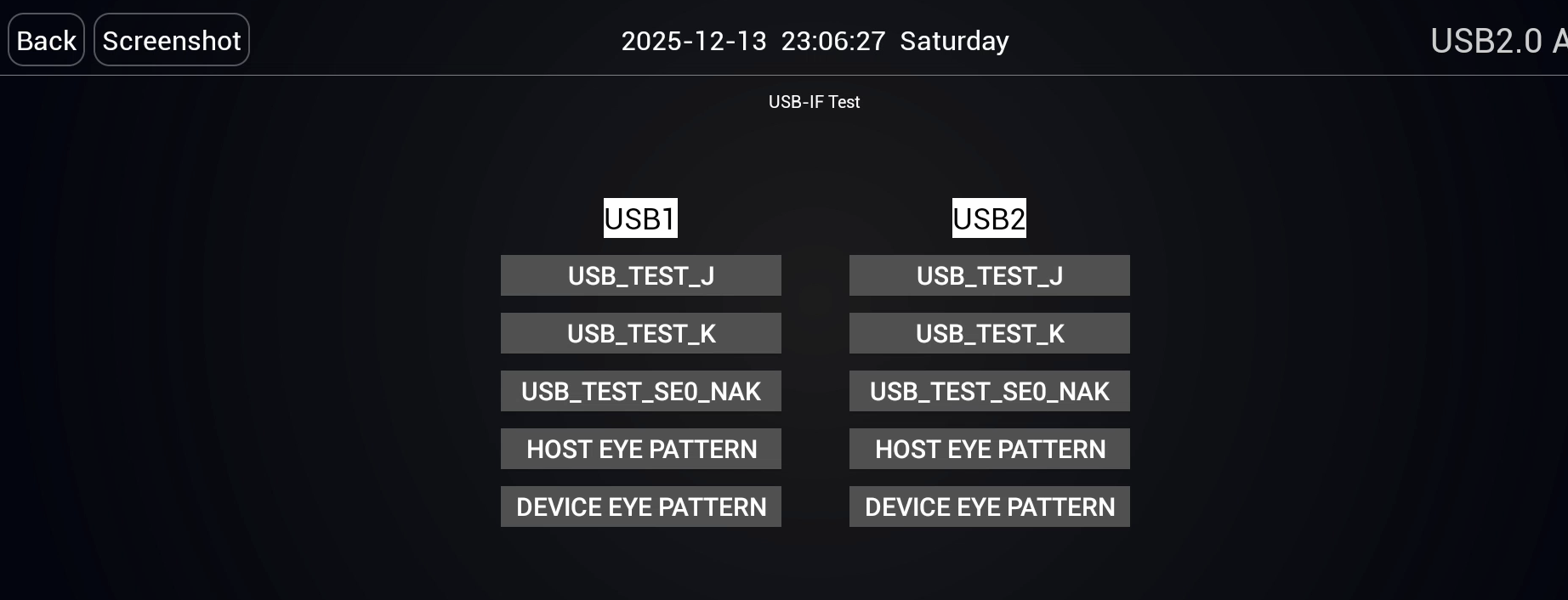
- Compare your screen with the picture below.
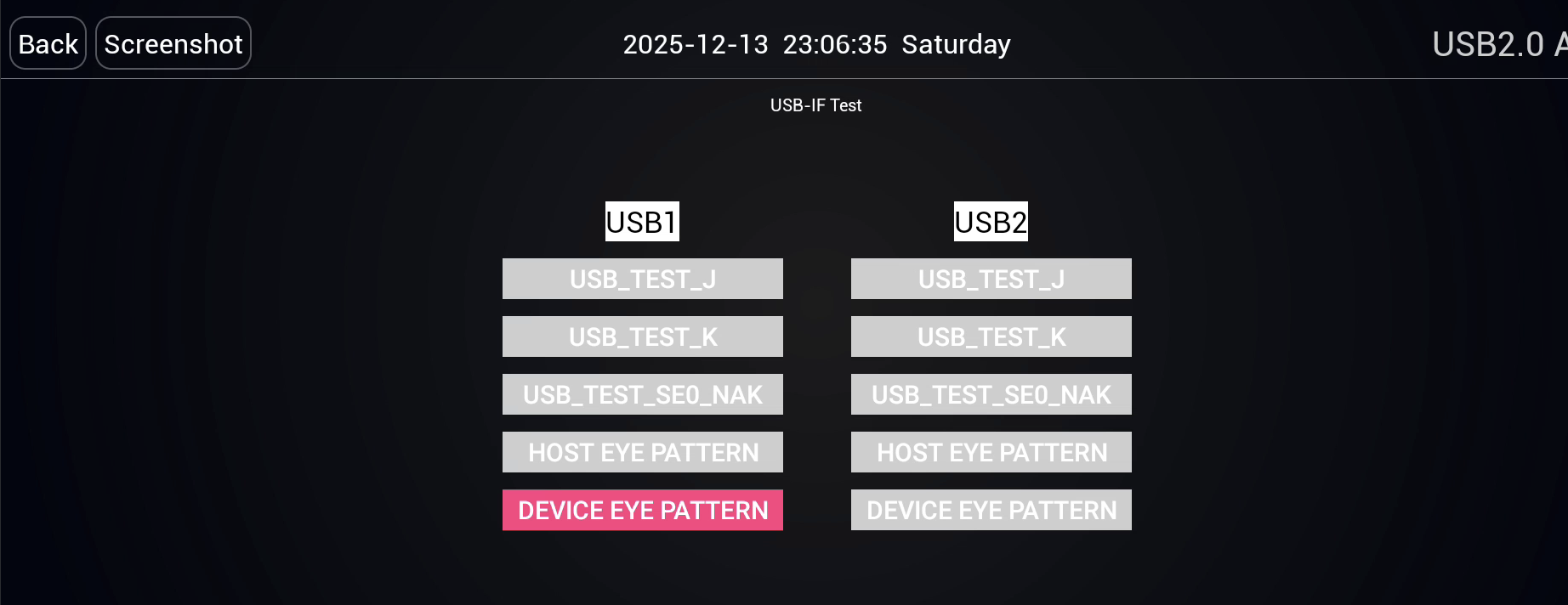
NOTE: If you do not see DEVICE EYE PATTERN / Device眼图, open the vehicle heading. You may need adbauth.key.
Connect the cable
Android phone or tablet
You need two parts. One is a Type-C OTG adapter. The Type-C plug goes into the phone or the tablet. The other end is a USB socket. The second part is a cable with a USB plug on both ends.
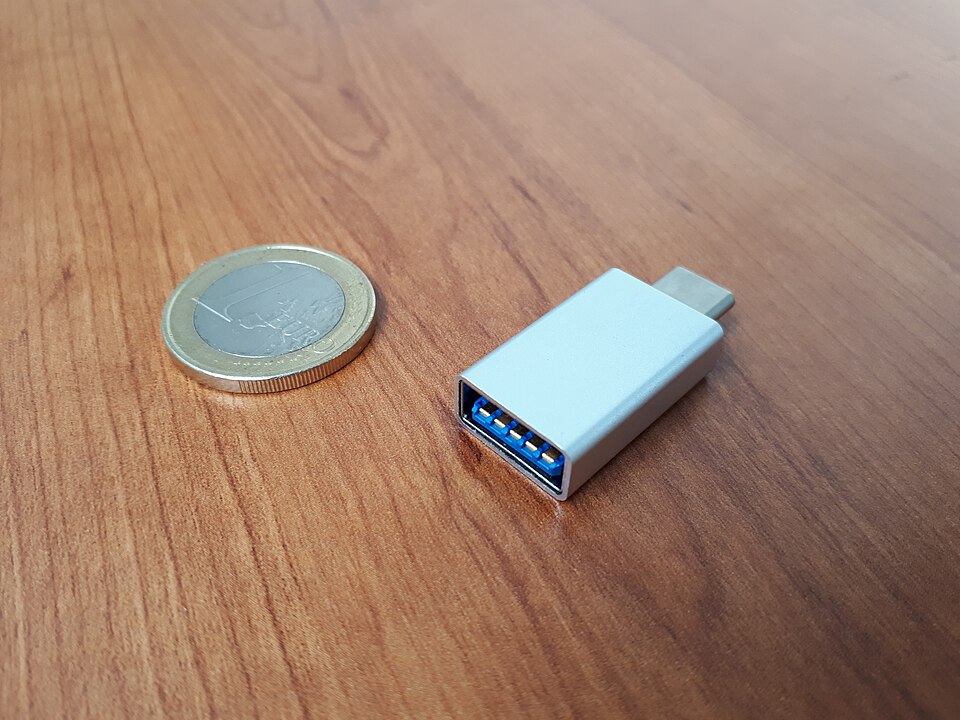
Photo: Fructibus, Wikimedia Commons, CC0.

- Put the Type-C plug into the Type-C port of the phone or the tablet.
- Put one USB plug of the cable into the socket of the adapter.
- Put the other USB plug of the cable into the USB port of the car.
Windows laptop
You do not need the OTG adapter. A cable with a USB plug on both ends is enough.
- Put one USB plug of the cable into a USB port of the computer.
- Put the other USB plug of the cable into the USB port of the car.
Install the app
- Open /install in your browser.
- Select the install type "02.00.00".
- Press "Connect". Select the car in the browser window.
- Press "Device Info". Make sure that the device information shows.
- Press "Install". Wait for the install to complete.
- If you want a store app, press "External store apps". This step is separate from the MapControl install.
What the installer does
- It downloads the APK file
/apk/com.mapcontrol.apk. - It sends the file to
/data/local/tmp/com.mapcontrol.apkin the car. - It sets
persist.sys.sv.isl true. - It runs
pm install -r -d -g. Then it deletes the file. - It gives the permissions.
Permissions that the installer gives
The installer gives these permissions to com.mapcontrol. The source is MapControl/install.sh.
- Doze whitelist:
dumpsys deviceidle whitelist +com.mapcontrol - AppOps: SYSTEM_ALERT_WINDOW, GET_USAGE_STATS, REQUEST_INSTALL_PACKAGES, MANAGE_EXTERNAL_STORAGE, WRITE_SETTINGS
pm grant: READ_LOGS, QUERY_ALL_PACKAGES, PACKAGE_USAGE_STATS, location (fine, coarse, background), WRITE_SECURE_SETTINGS, RECORD_AUDIO, BLUETOOTH_CONNECT, CAMERA, and others- Accessibility service:
com.mapcontrol/com.mapcontrol.service.GlobalBackService - Notification listener:
com.mapcontrol/com.mapcontrol.media.LauncherMediaNotificationListener
Install with the terminal (optional)
adb shell "setprop persist.sys.sv.isl true"
adb push com.mapcontrol.apk /data/local/tmp/mapcontrol.apk
adb shell "pm install -r /data/local/tmp/mapcontrol.apk"
For the complete permission list, read MapControl/install.sh in the repository.